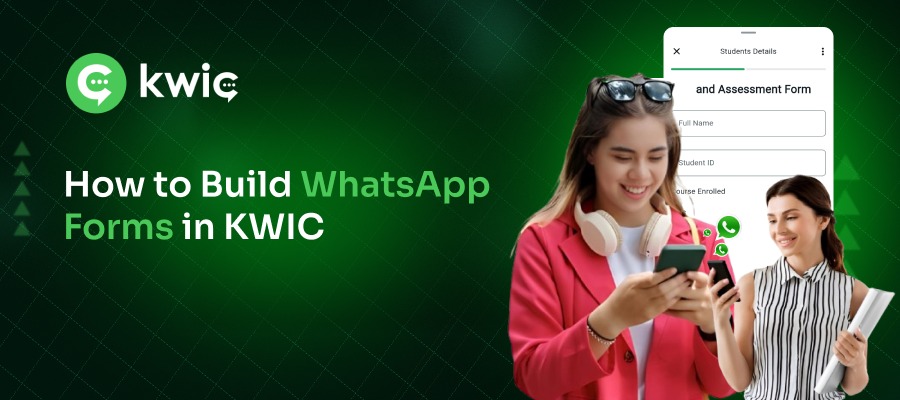
Creating a WhatsApp form using the KWIC platform is a simple step-by-step process. From designing your flow in Meta Playground to integrating it with KWIC and submitting it for approval, this guide walks you through everything you need to set up a fully functional WhatsApp form.
Step 1: Design the Flow for the WhatsApp Form
Start by creating a flow that will function as your WhatsApp form. Visit the
Meta Playground to build interactive forms that capture information such as:
- Name
- Company Name
- Category Selection
Meta Playground also provides a real-time preview panel on the right side, helping you visualize how the form appears to users.
Step 2: Open Meta Playground and Build the Flow
In Meta Playground:
- Click Create Flow
- Add input fields or multiple-choice questions
- Customize conversation steps as needed
You can preview your form on the right-hand side as you build it.
Step 3: Copy the Flow JSON
Once you finish building the flow, copy the Flow JSON from Meta Playground. This JSON contains all the logic and structure of your WhatsApp form.
Step 4: Access WhatsApp Manager via Facebook
Log in to Facebook and navigate to WhatsApp Manager. Then:
- Select your WhatsApp Business Account
- Click on Flow in the left-hand menu
- Click Create Flow
- Give your flow a name & category
- Paste the copied Flow JSON into the editor
- Save → Run → Publish the flow
Refresh the page and copy the Flow ID. This ID connects your form with KWIC.
Step 5: Log into the KWIC Application
Next, log into KWIC:
- Go to the WhatsApp Flow section
- Click the Sync button (right-hand side)
- Your created flow will appear
- Click Edit → Paste the same Flow JSON → Update
Step 6: Create a Template in KWIC
Create a new template that will trigger your WhatsApp form.
If you need help, refer to the guide “How to Create a Template and Submit for Approval in KWIC.”
Step 7: Choose a Flow Button
In the template settings, select the Flow Button option.
This ensures the flow is triggered when the user clicks the button inside WhatsApp.
Step 8: Paste the Flow ID
Paste the Flow ID (e.g., “RECOMMEND”) into the Flow Button configuration area inside the template.
Step 9: Submit the Template for Approval
Submit your template for Meta’s approval. Review times vary depending on Meta’s policies.
Step 10: Start Using the WhatsApp Form
Once your template is approved, your WhatsApp form is live and ready to use.
Integrate it into your customer engagement campaigns to collect structured information directly inside WhatsApp.