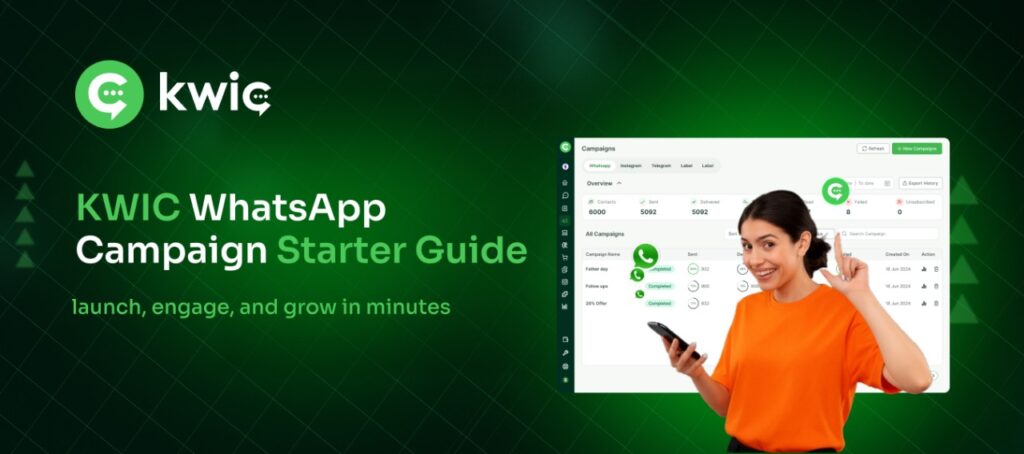
KWIC is a powerful communication platform that enables businesses to run targeted WhatsApp campaigns efficiently. Whether you’re sending individual messages or bulk campaigns, this comprehensive guide will walk you through the entire process.
Getting Started with KWIC
Before starting any campaign, ensure you have the following:
- Template Approval: Upload your template and get it approved (see steps in previous guide).
- Add Contact: Ensure contacts are added to your KWIC account (refer to previous guide).
Initial Setup
Login to the KWIC application using your credentials to access the dashboard.
Running Single Contact Campaigns
Single contact campaigns are ideal for personalized communication or testing your templates before bulk campaigns.
Step-by-Step Process:
- Navigate to the Chat section from the main dashboard.
- Click the + symbol on the left side.
- On the right side, select Send Template.
- Enter your WhatsApp number with the country code (e.g., 91 for India).
- Choose your approved template and click Send Template.
Running Bulk Campaigns
Bulk campaigns allow you to reach hundreds or thousands of contacts simultaneously—perfect for promotions, updates, or announcements.
Mandatory requirements:
- Template Approval (uploaded and approved, see previous guide).
- Contacts added in KWIC.
- Tags assigned in Tag Manager under the Profile section.
Launching Your Bulk Campaign
-
Create Campaign:
- From the main dashboard, choose the Campaign section.
- Click + New Campaign.
- Enter an optional campaign name.
-
Choose Template:
- Select the template and confirm via template preview.
- Click Next.
-
Choose Audience:
- Select filters (dialog box will appear).
- Select tags (Example: Team 1, Team 2) and click Apply.
- You can also select contacts by date, week, or month.
- Choose attribute tags (Include/Exclude).
- Check the box near the Name column, then click Next.
-
Schedule Your Campaign:
-
Option 1: Send Immediately
- Select Send Now.
- Click Publish Campaign. The campaign launches instantly.
- Monitor real-time delivery status.
-
Option 2: Schedule for Later
- Select Schedule.
- Set your preferred date and time.
- Click Publish Campaign. The campaign sends automatically at the scheduled time.
- Perfect for optimal timing or coordinating with other marketing activities.
-
Option 1: Send Immediately
🚀 KWIC makes running single and bulk WhatsApp campaigns simple, efficient, and highly targeted.