KWIC makes it simple to create and manage templates for WhatsApp communication. Follow this step-by-step guide to create a new template and submit it for approval within the KWIC platform.
Step 1: Log in to the KWIC Application
Start by logging into your KWIC account using your credentials. Once you’re in, navigate to the dashboard.
Step 2: Navigate to the Template Section
On the left-hand side menu, click the Template option to open the template management section.
Step 3: Create a New Template
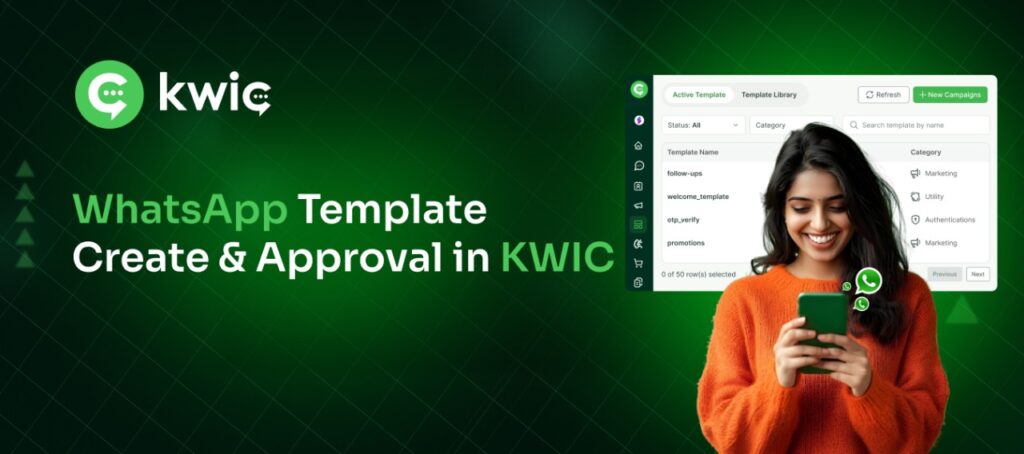
On the left, you’ll see Active Template (current templates) and Template Library (predefined templates from KWIC). On the right-hand panel, click the Create Template button to start.
Step 4: Name Your Template
- Enter a suitable name for your template (e.g., Welcome).
- Choose a category (e.g., Marketing, Utility, Authentication).
- Select your language (e.g., English).
Step 5: Choose Header Components
You can include different elements in your template:
- None
- Text: Header text up to 60 characters. Preview shown on the right side.
- Image: Max 5MB. Click Select File and choose an image. Preview appears on the right.
- Video: Max 15MB. Choose video and preview.
- Document: Max 5MB. Choose document and preview.
Step 6: Add Content
Enter your main body content. Provide a sample body (e.g., “Sample”) to demonstrate the final message.
Step 7: Add Footer and Call-to-Action
In the footer section, enter a keyword or short text (e.g., “Key”). You can also add call-to-action buttons:
- Custom Button: Add multiple custom buttons.
- Call Phone Number: Select “Phone” and input number with country code (e.g., +91).
- Visit Website: Enter a valid URL.
- Copy Offer Code: Add offer codes to copy.
- Flow: Set a keyword to automatically trigger a flow.
- Order Detail: Include order information if required.
Step 8: Submit for Approval
- Once all fields are filled and verified, click Submit for Approval on the right-hand side.
- The page will refresh, and your template will be submitted for approval.
- After successful submission, your template will undergo review. Once approved, it will be available for use in campaigns.
✅ KWIC templates help you maintain consistent, professional messaging and streamline WhatsApp campaigns.